

n8n for beginners: five practical automations for SMEs
How SMEs map recurring work onto the n8n automation platform: from lead capture through AI agents to a RAG knowledge system. A sober overview.
Anyone in a mid-sized business who knows recurring manual tasks – copying enquiries from a web form into a spreadsheet by hand, typing appointment confirmations, maintaining calendar entries – knows how much time is lost in the process. The automation platform n8n promises to take over exactly these routine tasks by connecting different applications with one another. A detailed beginner’s tutorial by Jono Catliff builds up five concrete workflows. I summarise the most important concepts soberly, without the hype that often comes with it, but with an eye on what of it is actually useful in the everyday work of an SME.
- n8n connects applications into workflows via triggers and actions, one trigger starts, any number of actions follow.
- Unlike Zapier or Make.com, n8n charges per workflow execution, not per individual step, usually cheaper for multi-stage processes.
- For technically skilled teams, self-hosting is possible free of charge.
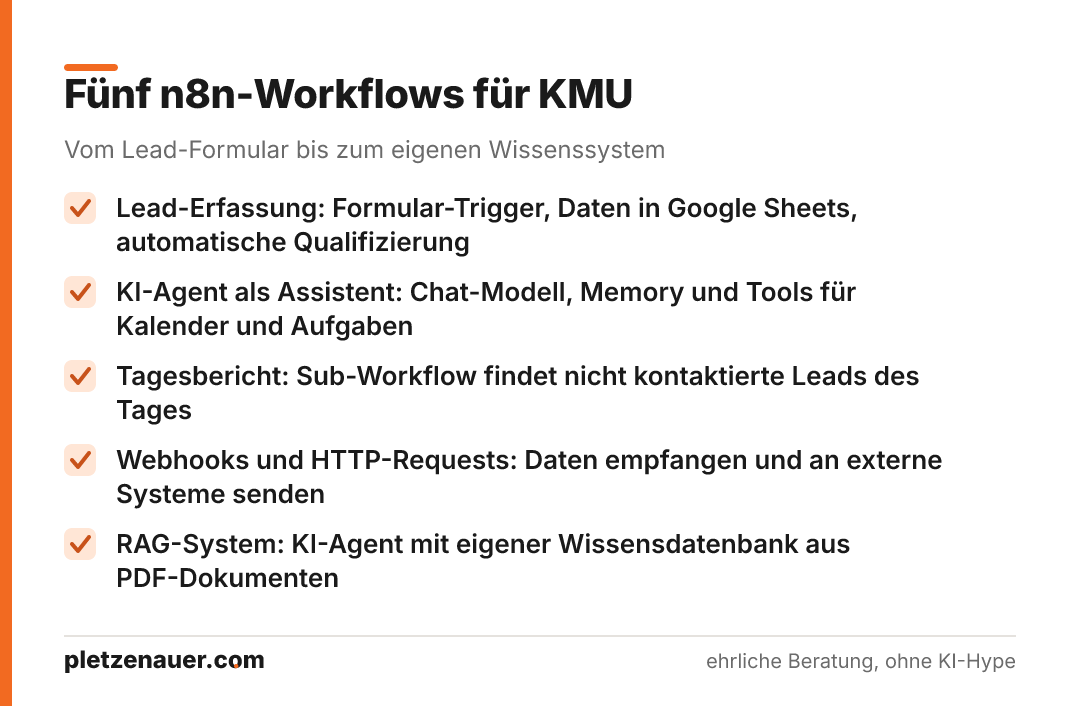
- The five scenarios shown range from automatic lead capture through an AI assistant to your own knowledge system (RAG).
- AI building blocks reduce the configuration effort but do not replace a clean data model, such as consistent date formats.
What n8n is at its core
n8n is an automation platform that links several applications together. The basic principle is simple: an event triggers a chain of steps. If someone fills out a form, n8n can then send a message in Slack, create a row in Google Sheets or send an email. Thousands of applications can be connected.
Two terms are central:
- Trigger: the first step that starts a workflow, for example a form submission, an incoming chat message or a new row in a spreadsheet.
- Actions: everything that happens after the trigger, send an email, create a calendar entry, pass on data.
For context on pricing: according to the tutorial, n8n starts at around 20 pounds a month. The key difference from comparable tools such as Zapier or Make.com lies in the billing model, you pay per workflow execution instead of per individual module. For processes with many steps, that is often more economical. Anyone who runs it themselves (self-hosting) uses the platform free of charge.
The five scenarios at a glance
The tutorial deliberately builds workflows with real benefit, not demo gimmicks:
- Lead capture from a web form including automatic qualification
- A first AI agent as a personal assistant for calendar and tasks
- A sub-workflow that creates a daily report on leads not yet contacted
- Webhooks and HTTP requests as interfaces to the outside world
- A RAG system, an AI agent with its own knowledge base
Scenario 1: capturing and qualifying leads automatically
For service-oriented businesses, lead processing is often business-critical. The first workflow starts with a form trigger: as soon as someone fills out a form with first and last name, email, budget (as a selection field) and message, the chain runs.
The downstream actions:
- Google Sheets: the fields are assigned to the spreadsheet columns by drag and drop. Using the “Append or Update” function, a record is created or – if the email address as a unique key already exists – updated.
- Date and logic via expression: fields can contain fixed text or an expression, that is, a variable value. A small JavaScript function like
{{ $now }}sets the timestamp. An IF function automatically marks enquiries below a budget threshold as “rejected”. - Filter and switch: a filter sorts out enquiries below a minimum threshold. A switch function routes the rest onto different paths depending on the budget, for example for differently worded reply emails.
- Merge and notification: the paths are brought back together; the team receives an instant notification via Gmail (alternatively Slack, SMS or CRM).
The tutorial mentions that a quick response within 60 seconds significantly increases the conversion rate. This figure comes from the video and should be critically checked before you use it yourself, the principle of “respond quickly” remains sensible regardless.
A practical trick: with pinned test data you can test the workflow as often as you like, without filling out the form anew each time.
Scenario 2: the first AI agent as an assistant
The second workflow begins with a chat trigger and an AI Agent building block. An AI agent consists of three parts:
- Chat model: the “brain”, in the example OpenAI/ChatGPT via the API. This is the only paid building block; a credit balance of at least 5 US dollars is required.
- Memory (window buffer): the short-term memory that keeps a defined number of previous messages so that the agent knows the conversation context.
- Tools: the tools with which the agent actually acts, such as Google Calendar or Google Sheets.
Instead of filling in each field manually, the $fromAI() function does the work: the agent extracts the start and end time or the title of an appointment from the request itself. In the example this made it possible to create a calendar entry via chat, retrieve existing appointments and maintain a task list in Google Sheets.
Two lessons from the tutorial are relevant in practice:
- The model does not know the current date. Without a hint it created an appointment in the wrong year. Remedy: pass today’s date as an expression into the system prompt.
- Clear rules in the system prompt – such as a consistent date format (MM/DD/YYYY) or the instruction to first search for the matching record before each update – prevent misinterpretations. AI takes work off your hands but does not replace a well-thought-out data model.
Scenario 3: daily report on leads not contacted
The third workflow is a sub-workflow that is called by another workflow (trigger: “Executed by another workflow”). Its purpose: anyone who filled out a form but was not called back should not slip through the cracks.
The process searches the lead spreadsheet for today’s entries, filtered by “not rejected” and “not called”. An important detail from Scenario 1 applies here: anyone who uses $now for the timestamp stores hours, minutes and milliseconds, a filter on “today” then finds nothing. The solution is to store only $today (the plain calendar date) when creating the record. In experience, such data-type and format questions are the most common source of errors when getting started with n8n.
Data types you should know
The tutorial emphasises the most important data types in n8n:
- Text (such as a name or a message) and number (such as a budget)
- Boolean, true or false, such as “budget over 1,000?”
- Date, submission or follow-up date
- Binary data, files such as a PDF or image
- Array and collection, the composite structures that form the backbone of passing data along
Data can be viewed in n8n in three views: as a table, as JSON and as a schema. It is the same information each time, just presented differently. JSON being the format in which data usually travels between applications.
Scenario 4: webhooks and HTTP requests
The tutorial describes these two building blocks as the most frequently used functionality. Simplified:
- Webhook: the inbound side. Via a provided URL, n8n receives data from outside, for example via the POST method from another application.
- HTTP request: the outbound side. n8n sends data to external systems. Strictly speaking, many ready-made building blocks such as Google Sheets or Gmail are at their core also HTTP requests, just pre-configured.
The practical value: for applications without a ready-made integration, you can still establish a connection via an HTTP request, for example to create a new contact in your own CRM. That is exactly the lever that is relevant for SMEs with specialised software beyond the common standard tools.
Scenario 5: a RAG system with its own knowledge base
The fifth and most advanced scenario builds an AI agent with its own knowledge base, a RAG system (retrieval-augmented generation). The idea: the agent should answer based on your own company data, for example on prices or service details.
The building blocks:
- Source: a PDF file is loaded from Google Drive. Connecting Google Drive was the most cumbersome step in the tutorial.
- Vector store: the variant integrated into n8n is quick to set up; for better results, alternatives such as Pinecone are mentioned.
- Embedding model: the text is translated into a numerical representation (vectors), in the example with “text-embedding-3-small” from OpenAI. Important: the same embedding model must be used on both sides, when feeding in and when querying.
- Chunking: longer texts are broken down into smaller units of meaning – by paragraph, if necessary by sentence – so that the meaning is preserved on retrieval.
As a result, the agent can answer a question like “What does your service cost?” by finding the matching spot in the knowledge base instead of guessing. For SMEs this is the approach to make, for example, product catalogues or internal documentation searchable.
Practical notes on working with n8n
- Editor and executions: you build in the editor, and the execution history is under “Executions”. When errors occur, it pays to look into the logs, there you can see which values a step actually processed.
- Workflow history: changes can be versioned and rolled back.
- Tags and projects: workflows can be organised by sales, marketing or recruiting and stored in personal or company projects.
- Four basic operations: in almost every integration it comes down to the same thing, search/retrieve, create, update, delete.
What n8n delivers for a small business
n8n offers SMEs a pragmatic way to automate recurring tasks across application boundaries, from lead capture to a searchable knowledge system. The usage-based billing model and the self-hosting option make the platform economically attractive, especially compared with alternatives billed per step.
Realistically, it remains true that getting started requires care with data types and formats, and that while the AI building blocks reduce the configuration effort, they do not replace a clean data model or clear rules in the system prompt. Anyone who automates a first, clearly defined process – such as lead capture – and tests it thoroughly has chosen the most useful entry point. Cited figures such as the conversion effect of a response within 60 seconds should be verified before you build your own argument on them.
Source: Jono Catliff – “Master n8n in 2 Hours: Complete Beginner’s Guide for 2026” (YouTube)
Newsletter
Hands-on notes by email.
New articles and lessons from projects with Claude, WordPress and Zoho. No spam, unsubscribe any time.
Almost done.
Please confirm with the link in the email that is on its way.
Let's talk
Does that sound like your situation?
Tell me briefly what you're working on. I'll tell you whether and how I can help. The call is free of charge.